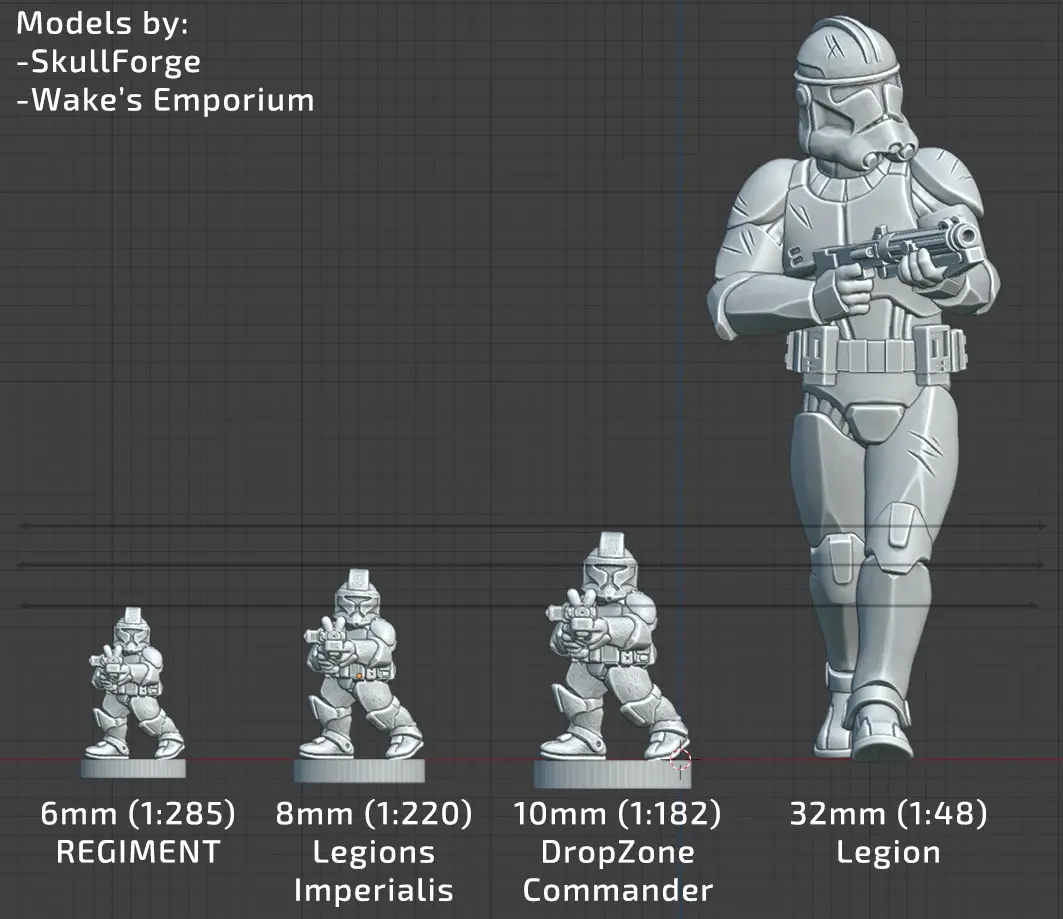

While REGIMENT is designed for 6mm (1:285) scale, the availability of high-quality STL files at this size can be limited at the time of writing this. This guide details the workflow for converting 1:48 (32mm "skirmish") scale models into print-ready files for 6mm or 10mm for using in Regiment.
1. Scale Reference and Objectives
In Regiment, the physical base is the absolute authority for movement and Line of Sight. While model scale can vary for aesthetic preference, the following standards are recommended:
-
Vehicles: Should be scaled to roughly 1:270 or 1:300 (can be higher or lower in some cases). Regardless of numerical scale, the main hull or footprint must fit within the confines of the assigned base size to limit base overhangs.
-
Infantry: While 6mm (1:285) is the thematic standard, 8mm (1:220) or 10mm (1:182) is often preferred for visibility and ease of painting. In Regiment, infantry size does not impact mechanics; only the intended base size is mandatory.
Conversion Table
2. The Blender Workflow: Structural Integrity
Small-scale prints require "chunky" proportions to survive the printing process and tabletop handling. High-detail 32mm models often have thin limbs or weapons that will fail at 6mm without modification.
Step 1: Object Preparation
-
Import your skirmish-scale STL into Blender.
-
Combine: If the model consists of multiple parts (arms, heads, backpacks), select all parts and use Ctrl+J to join them into a single object.
-
Scale: Use the S key and input the conversion percentage from the table above.
Step 2: The Solidify Modifier (Fattening)
To ensure limbs and weapons are thick enough to print:
-
Navigate to the Modifiers Tab (Wrench icon).
-
Select Add Modifier > Solidify.
-
Play with the Thickness slider between to find a good fit, about -0.05 to -0.40.
-
Note: The model will look slightly distorted and "chunky" in Blender. This is intentional; at 6mm, these exaggerated shapes are necessary to preserve the visual silhouette after printing.
-
-
Apply the modifier once you are satisfied with the "chunkiness."
Step 3: The Decimate Modifier (Optimization)
High-poly skirmish models can create unnecessarily large file sizes that slow down slicer software.
-
Select Add Modifier > Decimate.
-
Use the Collapse setting and adjust the Ratio until the "Face Count" is approximately 250,000 or below.
-
This may be around 0.1 and 0.5 depending on your starting poly-count.
-
-
Apply the modifier and Export the object as an STL.
3. Final Repair: Windows 3D Builder
Scaling and joining objects in Blender often creates "non-manifold" geometry or inverted normals that can confuse 3D printing slicers.
-
Open Windows 3D Builder (installed by default on most Windows systems - or found here: https://3d-builder.en.softonic.com/).
-
Import your recently exported STL file.
-
Repair: If a red box appears around the model with an error stating the object is "invalidly defined," click the pop-up to repair and wait for it to finish.
- This could take several minutes depending on the file size and poly-count of your object
-
Save: Once the repair is complete, save the file. It is now ready for your preferred 3D printing slicer. At these scales it is highly recommended to resin print infantry, but with lower layer height and very small nozzle sizes (0.2mm or less) FDM filament printing may be possible.
I will eventually put out a video explaining this process visually for those who prefer that method of learning. When that happens this guide will be updated.